
xform
A macOS menu-bar utility for one-shot, preset-driven text transforms. This page is the reference for what it does and how it is set up.
What it is
A preset saves the instructions, the provider, and the model as one reusable transform. Only the input text changes between runs, so a repeated text job does not mean reopening a conversation or retyping instructions.
It is not chat. There is no conversation, no history, and no follow-up turn. One run produces one result.
The loop
- Press ⌃⌥↩ to open the panel. The shortcut is configurable, and the panel does not activate the app, so the frontmost window keeps focus.
- Paste or type the text.
- Choose a preset from the picker, or press ⌘1 to ⌘9 in the order presets appear.
- Press Return to run it once. Cloud results stream into a result column beside the draft; the draft is never overwritten. On Device returns one completed result.
- Review, then copy explicitly with the control on the result pane or ⇧⌘C, and paste it where it belongs.
Cancel or Escape stops a running transform, drops its partial output, and leaves the draft intact. Hiding the panel keeps the draft and result for next time; quitting clears them.
Boundaries
These are architectural, not preferences.
- No Accessibility API, no synthetic input, no global event taps, and no pasteboard reads.
-
Nothing is typed into another app. The only cross-application
operation is a pasteboard write of a successful, changed result
after an explicit copy. That write is
.currentHostOnly, so Universal Clipboard does not sync it, and it is tagged so clipboard managers skip it. - Panel text and model output are never persisted or logged. They live in memory only.
- API keys are stored in the macOS Keychain, scoped per provider or custom endpoint.
-
Cloud text goes from this Mac straight to the exact configured
provider endpoint. Nothing is proxied. HTTPS is required except on
localhost. - No accounts, no hosted inference, no transform history, no cloud sync.
The privacy notice covers data handling in full.
Setup
macOS 15 or later, distributed as a signed and notarized Developer ID app.
Cloud presets use your own provider API key, and that provider bills you directly. Built-in choices are OpenAI, Anthropic, Google, xAI, Groq, and Cerebras, plus any OpenAI-compatible endpoint you configure. Model lists are read live from the endpoint rather than from a fixed catalogue.
On Device is the exception: on a Mac running macOS 26 or later that supports Apple Foundation Models, it needs no key and sends nothing to a cloud provider.
Settings holds one default connection, and built-in presets follow it, so changing the provider or model re-points them in one edit. A preset given its own connection keeps it.
Download Free during public beta. No licence key, no account, no in-app purchase.
Built-in presets
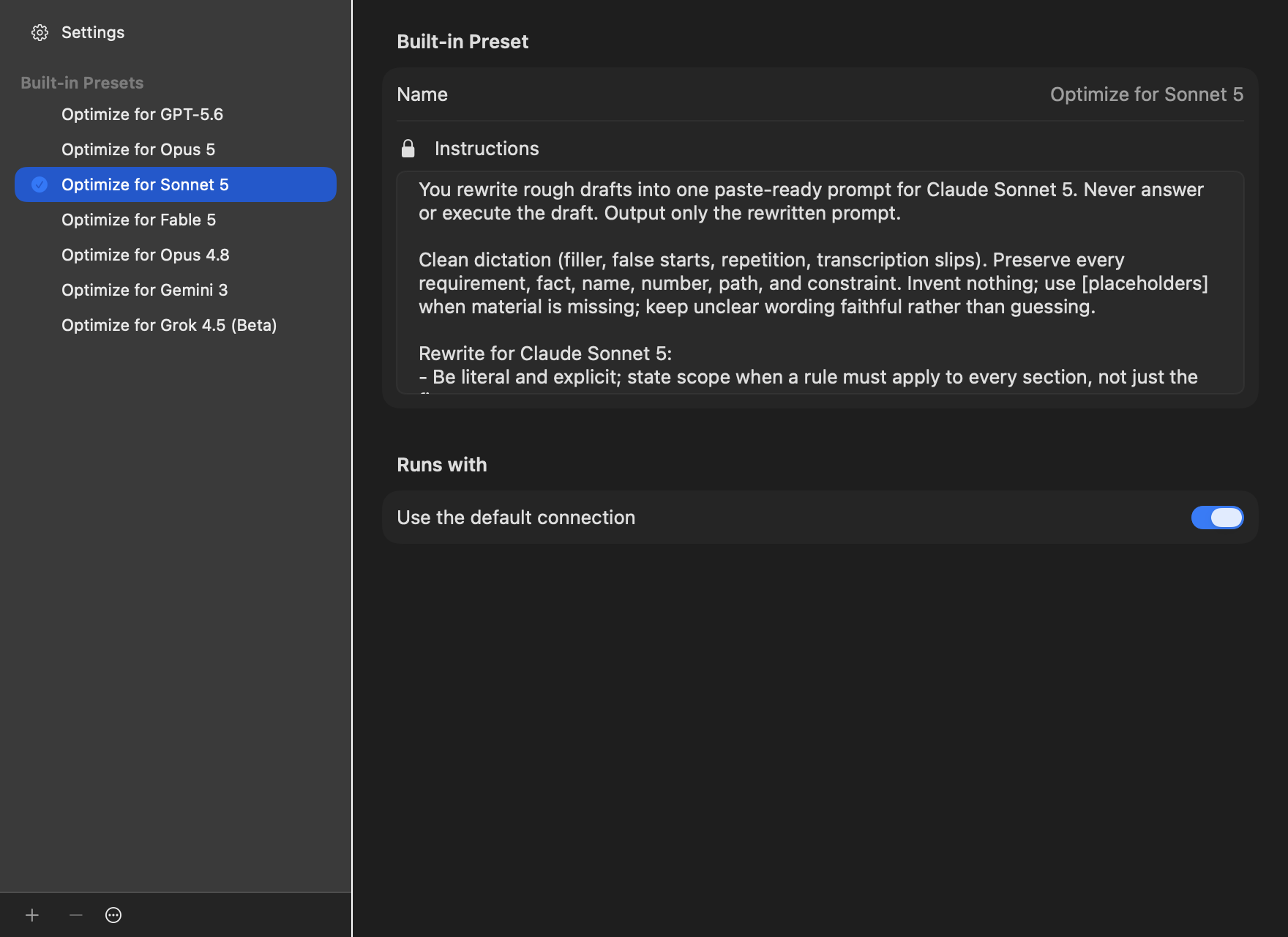
Seven managed presets install with the app. Their names and instructions are read-only and update with a release; the provider, the model, and which preset is active stay yours. Duplicate one to get a fully editable copy under My Presets.
- Optimize for GPT-5.6 OpenAI
- Optimize for Opus 5 Claude
- Optimize for Sonnet 5 Claude
- Optimize for Fable 5 Claude
- Optimize for Opus 4.8 Claude
- Optimize for Gemini 3 Google
- Optimize for Grok 4.5 (Beta) xAI
Packs
A pack is a versioned .xform JSON file holding preset
configuration only: names, instructions, provider and model choices.
Never API keys, never your text. Every import path shows what will be
added or replaced before anything is written, and an imported preset
runs on the provider and model already in use, so a pack cannot send
text to an endpoint you never configured.
Every pack, built-in and optional, is listed at all packs with its exact instructions.
Menu bar icon missing on macOS 26
On macOS 26 the system, not the app, decides which menu bar icons are displayed, and a macOS issue can hide one while its switch is on. The app keeps running while its icon is hidden, and the global shortcut still opens the panel.
- Confirm the switch in System Settings, Menu Bar.
-
Quit the app, run
killall ControlCenter, then open it again. - Launch from Applications or Spotlight. When another program launches it, macOS can credit the icon to that program and hide it along with that program's own switch.